


Good chatbot analytics answers three questions: is the AI doing the work, is it doing it well, and what does each result cost? In this live build, Jason Plotkin, CEO and Managing Attorney of Pinder Plotkin Legal Team, let us into the CloseBot account for his Spanish-only personal injury brand. We built four dashboards: a Daily Pulse, a 4-Week Checkup, a cost dashboard, and a website and widget dashboard. Within an hour, the data had disproved one of Jason’s hunches, flagged a rising cost per booking after a big rebuild, and shown which channels and days actually produce bookings.
Dashboards uncovered a problem Jason’s team hadn’t yet noticed by monitoring the chats
Most people opening a reporting tool for the first time see a blank screen and ask the same thing: what do I even track? This post walks through exactly what we tracked for Jason, why, and what the numbers told us. Every chart below was built with CloseBot’s sales agent analytics, using templates as a starting point.
Who is Jason Plotkin, and what were we building for?
Jason runs a legal team in Maryland for personal injury and workers’ compensation. For this build, we worked in one of his personal injury brands. It gets steady workers’ compensation leads, plus dog bite and auto accident cases, and every lead speaks Spanish. Every conversation the AI has is 100% in Spanish.
Here’s how leads come in:
- A lead fills out a form.
- The firm sends a text.
- If the lead replies, CloseBot takes over the conversation.
The AI works over SMS through HighLevel, plus Instagram and Facebook direct messages. HighLevel’s AI voice handles calls. Email replies come from humans and mostly answer the firm’s newsletter.
One rule before we started: we never opened the chats page. For a law firm, conversations contain potential clients’ names and case details. Dashboards don’t, so we could build everything on a recorded call without exposing anyone.
Decision 1: Start with a Daily Pulse
The first dashboard came from our Daily Pulse template. We applied a global filter so it only showed Jason’s Spanish-language source, then changed the time ranges so it compared today against yesterday.
The Daily Pulse shows KPI cards for:
- outbound messages
- new contacts
- bookings
- follow-ups sent
- conversation sentiment
Each card lets you choose whether an increase is good or bad. For a sales agent, more messages usually means more engagement. For a support bot, more messages might mean confused customers. You set the trend direction to match what a win means for that account.
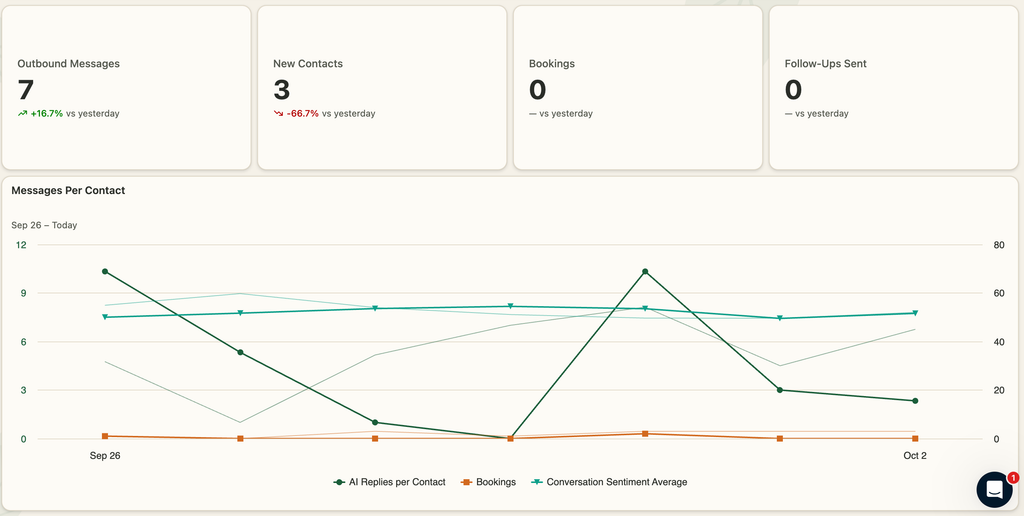
Why it matters: Agencies should have one place to share daily wins with clients. Jason can also add his own team members as “clients” on a report, so the person who owns each area sees just their numbers. Emailed reports are on the way.
Decision 2: Check whether your team is taking over the AI’s conversations
Jason’s first question wasn’t about bookings. It was about his team. The firm has KPIs and procedures, and staff jumping into conversations the AI should handle breaks them. He suspected it was happening.
We answered it with a Formula metric: All Outbound Messages minus AI Replies, charted day by day over four weeks. The answer was zero. Every outbound message in that period was an AI reply.
Jason’s reaction summed up the whole point of analytics. He had a gut feeling about what was happening, and the data proved him wrong in about two minutes.
Decision 3: Put efficiency, results, and happiness on one chart
Next, we built the chart I’d recommend to almost anyone. It plots three lines by week:
- AI replies per contact the AI replied to (efficiency)
- Bookings (results)
- Conversation sentiment average (happiness)
Read them together. If replies per contact go down while bookings stay flat or rise, your AI is getting more efficient. If replies per contact fall and bookings fall too, something broke.
In Jason’s account, the week of September 28 had lower bookings than usual, and the week before had been very strong. Replies per contact had dropped from a peak of 7 to 5. Sentiment was actually better than the week before. So leads were happy, but fewer were booking. That’s a reason to dig in, not a reason to panic.
Jason added an important caution. The firm had once been so overbooked that it ran out of appointment slots. A dip in bookings can mean the AI had no times to offer, not that it failed. They’ve since hired more staff to handle the volume.
Dashboards are the perfect way to catch issues like dropping happiness levels over time before they impact your revenue
Decision 4: Break sentiment out by channel
We duplicated the chart and segmented sentiment by channel. Email sentiment was strongly positive. That makes sense, because humans answer email, and most of those messages are replies to the firm’s newsletter. SMS and the social channels held steady around the middle of the scale.
Instagram and WhatsApp dropped to zero at points. In CloseBot, a zero means no data for that period, not angry leads. In this case, Jason’s accounts had briefly been locked out of Instagram and Facebook until Meta reversed its mistake.
Decision 5: Track follow-ups sent every day
This is the chart Jason wished he’d had months ago. At one point, his team noticed activity had dropped and couldn’t figure out why. It turned out someone had accidentally turned off follow-ups, and nobody knew how long they’d been off.
A daily Followups AI Sent card would have caught it within a day. If you only add one chart after reading this post, add this one.
Decision 6: Separate leading indicators from lagging ones
Someone in the chat asked which KPIs matter, and this is the framework I gave.
Bookings are a lagging indicator. They tell you what already happened. For years, bookings were the only thing most AI appointment setters could show, alongside raw message counts.
Message count is a poor leading indicator. It tells you volume, not quality.
Better leading indicators:
- Messages per contact. A higher number means leads are engaging with the AI.
- Sentiment. It shows how those conversations feel.
Look at them together. Jason pointed out the business value right away: seeing which sources the AI performs best on lets him move resources there, and that saves human time.
Decision 7: Use heat maps on the 4-Week Checkup
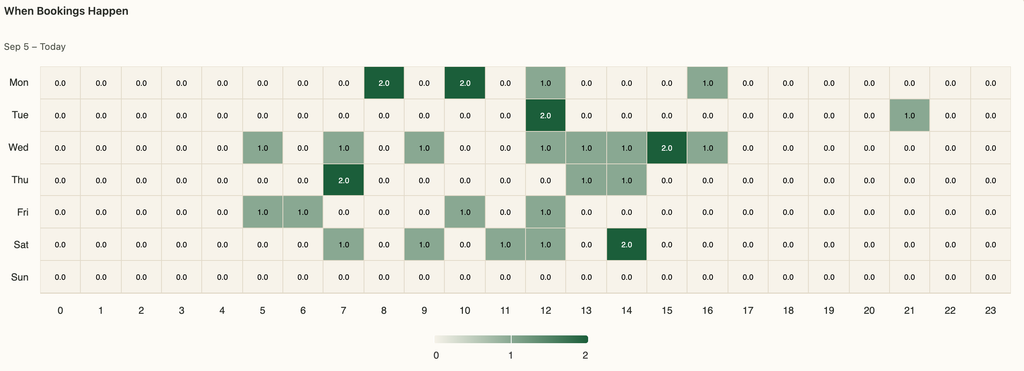
The second dashboard zooms out to four weeks. That’s where heat maps earn their place. On a single day, a heat map is just one row. Over a month or a year, it shows patterns.
We charted when bookings happen. For Jason’s brand, Friday and Saturday were busier than I see in most accounts. Usually there’s an uptick on Sunday. This chart shows when the lead books, not when the appointment takes place.
Decision 8: Turn on lead scoring with simple, honest rules
Jason’s source had no lead scoring yet, so we set it up live under Sources > Analytics > Lead Score:
| Event | Points | Limit |
|---|---|---|
| Appointment booked | +10 (we started at 5) | Unlimited |
| Reply with sentiment of 60 or higher | +1 | Every time |
| Reply with sentiment from 0 to 40 | -1 | Every time |
| Page viewed (tracked by the Sales Intelligence Pixel) | +1 | Max 5 |
Two of these were judgment calls:
- Unlimited bookings. A personal injury lead can become a client again and book several times over the years, and a returning client is a better lead.
- Raising bookings from 5 to 10 points. Five page views would otherwise have counted the same as a booked appointment. That didn’t reflect what the firm actually values.
Lead scoring starts counting from the moment you turn it on. It doesn’t score past conversations. Once points build up, a heat map of when points are awarded can show hidden value. Weekends might have few bookings but lots of positive conversations and site visits. That’s worth investigating.
Decision 9: See which channels actually drive bookings
We segmented bookings by channel, week over week. About 20% of the brand’s bookings came directly from Facebook and Instagram DMs. Most firms assume social messages are for brand awareness. Here, they were filling the calendar.
Decision 10: Watch cost per booking, not just cost per message
The third dashboard was all about cost, and it surfaced the most important finding of the call.
Jason’s team had switched the brand to Agent Node two or three days earlier, with it fully unlocked. Here’s what that changes:
- Locked: a flat 1.2 cents per message.
- Unlocked: you pay the actual token cost, so a big prompt, lots of tools, or thinking enabled all raise cost per message. Jason’s team had also turned on “remove limits” for longer prompts.
Thinking Mode. With his permission, I turned Thinking Mode on. It raises cost a little, but in my own account, thinking is only about 5% of cost per message. Most of it comes from the global prompt and tools. Thinking improves performance a lot, so it’s usually worth it.
AI Spend Breakdown. This metric showed knowledge base lookups taking the biggest share of Jason’s costs, followed by the global prompt. Tool descriptions and node prompting were small. Nothing looked worrying. The one thing to watch for is a team adding every available tool, like internet search or GIF sending, until tool descriptions take over the bill.
Cost per booking. Cost per message doesn’t tell you if spend is worth it, so we switched to AI Spend per Booking. Before the rebuild, Jason paid about 30 cents per booking. After it, the cost was close to $1. Jason’s priority is results, and for a personal injury firm, a dollar per booked consultation is still a bargain. But the trend is worth watching.
Contacts per booking. We added Contacts AI Replied To per Booking. Since the switch:
- Fewer messages were exchanged.
- Costs went up.
- It took more contacts to get each booking.
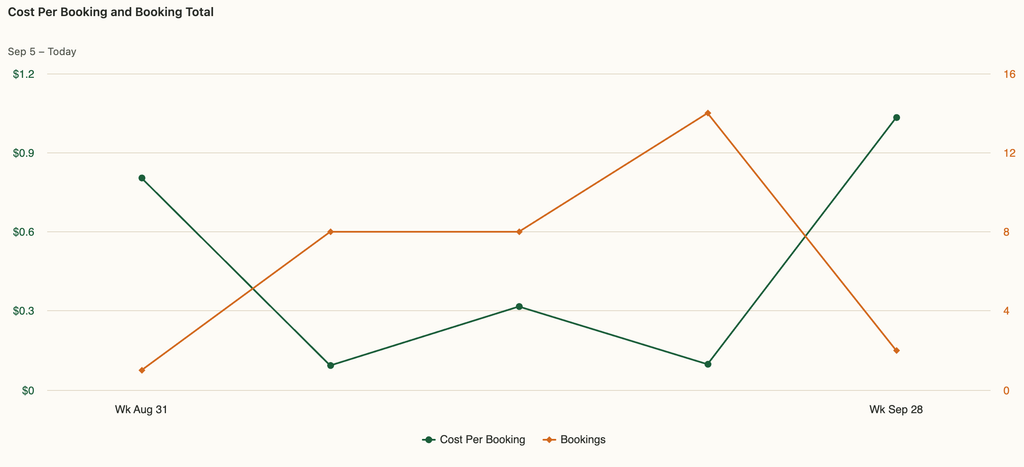
None of those are good signs, and all three point to the same next step: review the new Agent Node build. A dip like this is common right after a major overhaul. Builds usually need tweaks before they settle. Our AI sales agent best practices guide walks through a full Agent Node build, including follow-ups.
Decision 11: Track website traffic and the chat widget
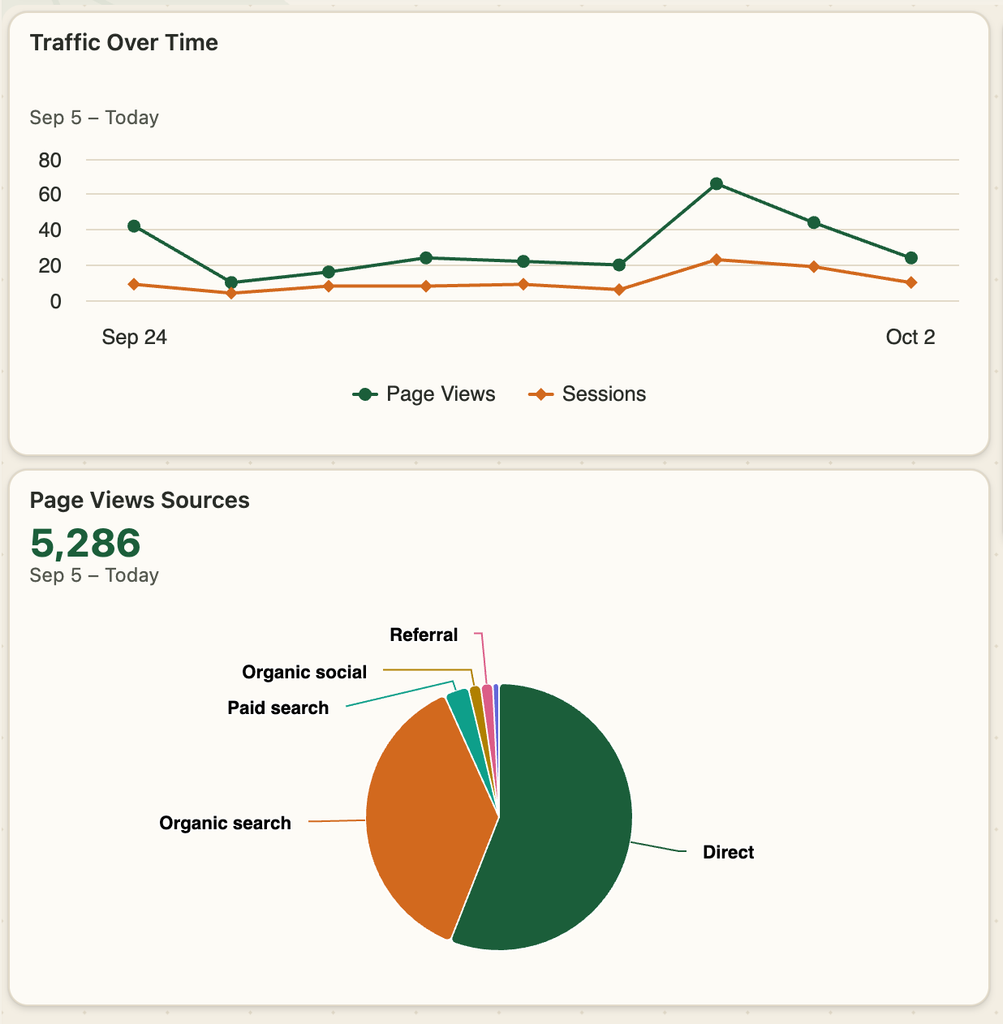
The fourth dashboard used data from CloseBot’s Sales Intelligence Pixel. The pixel sits in the site header and collects data on every page it’s installed on, even pages without the chat widget.
We charted page views segmented by traffic source. Most of Jason’s traffic came from direct visits, then organic search, and page views and sessions were trending up. A Google Analytics report can show you that too. The difference is the next step we’re building: connecting the people who engage with the widget and book back to where they came from.
The dashboards we ended up with
By the end of the call, Jason had a starter set any agency or business can copy:
- Daily Pulse: today versus yesterday for messages, new contacts, bookings, follow-ups sent, and sentiment. These are the short-term KPIs.
- 4-Week Checkup: efficiency, bookings, and sentiment on one chart, plus heat maps of bookings and lead score points. These are the long-term KPIs.
- Cost: AI Spend Breakdown, cost per booking, and contacts per booking.
- Website and widget: page views by traffic source, sessions, unique visitors, and wallet balance.
Then add dashboards for whatever matters most to that client, such as lead happiness or bookings by channel.
The bigger win for Jason’s team is that they can now spot these issues without reading a single conversation. That matters when the conversations are in Spanish and not everyone on the technical side speaks it.
What’s free and what’s paid
Reports, dashboards, and most charts are free in CloseBot. These features need the paid Analytics add-on:
- Chart types: tables and heat maps
- Segmenting: for example, sentiment by channel or spend by cost driver
- Topics
- Lead scoring, sentiment scores, and persona A/B testing
See the CloseBot analytics feature page for the full feature list. Our analytics launch post has pricing. If you want to know how we score sentiment on every message, see how we use Jev in production.
Frequently asked questions
Chatbot analytics is the measurement of what an AI chatbot or AI sales agent does and what it produces. That covers conversation volume, engagement per contact, sentiment, bookings, lead scores, and cost. For sales use cases, the most useful chatbot analytics connect AI activity to outcomes, such as cost per booking.
Track a mix of leading and lagging indicators:
Bookings are the main lagging indicator.
Messages per contact and conversation sentiment are better leading indicators than raw message counts.
Daily follow-ups sent confirm the AI is actually working.
Cost per booking and contacts per booking show whether the spend is worth it.
law firm using AI for intake should track: daily bookings and new contacts, follow-ups sent, conversation sentiment by channel, bookings by channel and by day, AI cost per booked consultation, contacts needed per booking, Firms with intake staff should also confirm how often humans take over AI conversations, using a formula like All Outbound Messages minus AI Replies.
In CloseBot, create a Formula metric that subtracts AI Replies from All Outbound Messages, and chart it daily. Any number above zero is a message a human sent. In Jason Plotkin’s account, the result was zero for four weeks, which disproved his suspicion that staff were taking over.
Start with AI spend per message, then move to AI spend per booking, because that shows whether the cost is worth it. CloseBot’s AI Spend Breakdown also splits spend by driver, such as the global prompt, knowledge base lookups, tool descriptions, and thinking. That way you can see what to trim.
No. CloseBot lead scoring starts counting from the moment you turn it on and doesn’t score earlier conversations. Set your rules early so the data builds up. A heat map of when lead score points are awarded becomes useful after a few weeks.
Yes. Metrics like bookings, messages per contact, follow-ups, cost per booking, and channel breakdowns work the same in any language. In this build, they let a team that doesn’t all speak Spanish monitor a Spanish-only AI agent without reading the conversations. CloseBot’s Topics feature is still being tuned for non-English conversations.
For AI sales agents on GoHighLevel and HubSpot, CloseBot includes analytics built for sales outcomes. That covers 27 reporting metrics, a Formula metric for custom KPIs, lead scoring, per-message sentiment scores, persona A/B testing, AI cost breakdowns, and dashboards agencies can share with clients. Most chatbot analytics tools focus on support metrics like deflection instead.