


The short version: If you’re using Sales AI without access to detailed analytics for you and your AI Assistants, you’re running blind. CloseBot Analytics is AI sales analytics built for AI sales agents. It adds 27 reporting metrics and custom dashboards you can share with clients. It also scores every lead and tracks conversation sentiment on a 0 to 100 scale. You can A/B test AI personas and have the winner picked automatically. And it breaks down exactly what your AI spend is going toward. The base dashboards are free. Lead scoring, sentiment, topics, and persona A/B testing come with the paid Analytics add-on.
We went live with this on our Analytics Launch Party webinar. It’s the result of six months of focused building, and I’d imagined it for years before that. Here’s everything that shipped, how it works, and what it costs.
Why do AI sales agents need their own analytics?
AI sales agents need analytics you (and your AI Assistants) can monitor because standard chatbot reporting gives you the leading and lagging data, but nothing in between. Most dashboards, including our old dashboard, only gave you access to information like appointments booked or messages sent. It told nothing about how lead happiness changed throughout the conversation or how expensive certain messages were and why.
Our first priority at CloseBot was always the foundation: sales AI that qualifies leads and books appointments. CloseBot is now the best at that, even beating HighLevel’s own self-proclaimed Summer of AI numbers (2.5M conversations over Summer of AI). The second priority is being able to show clients what’s working and what isn’t. Then you can split test and optimize for lower cost, happier conversations, or better leads.

Until now, tracking that was close to impossible. People tried hacky workflows and external code systems. We’ve seen every attempt. CloseBot Analytics replaces all of it with native AI sales data, pulled from the more than 150,000 messages a day that run through the platform.
Honestly, our old dashboards were slow. On some of our larger accounts they were unusable. The new reports load almost instantly, even when you switch time ranges or split a chart into segments.
What does CloseBot Analytics include?
The release has six core parts:
- Custom reports and dashboards with 27 metrics, a Formula metric for building your own calculations, and a library of templates.
- Lead scoring with point rules you set for each source.
- Conversation sentiment scores from 0 to 100 on every message.
- Topics and the Topics Explorer, which label what leads talk about and how they feel about it.
- Persona A/B testing that picks the winner automatically.
- The Leaderboard, which is back, so you can see how your accounts stack up.
We also shipped two new themes, Forest and Brutalism, each in light and dark mode.
How do reports, dashboards, and charts work?
Reports hold dashboards, and dashboards hold charts. Each report can contain unlimited dashboard tabs. The first time you open Reports, you get a Starter dashboard that mirrors the old dashboard (replies over time, AI spend over time), just much faster.
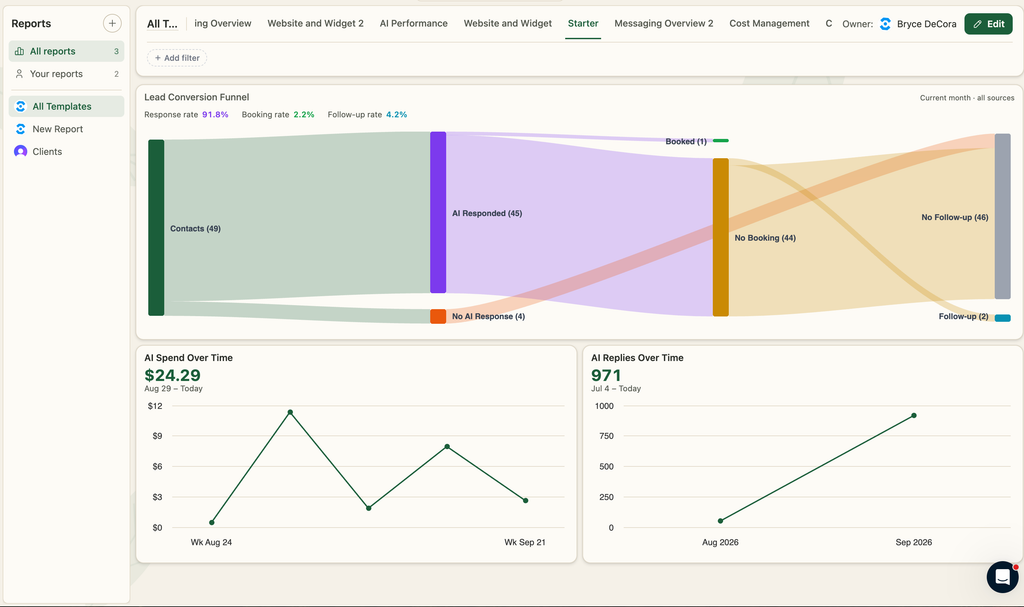
Every chart lets you set a title, time range, chart type, metrics, and the view on the x-axis. The most powerful option is Segment By. It splits one line into several, one per value of whatever you pick: channel, job flow, persona, source, or source type. For example, if you segment AI replies by channel, you can see at a glance that most of your volume comes from the chat widget and SMS. You can also compare any chart to the previous period.
The Formula metric lets you do math across metrics. AI Spend divided by AI Replies gives you cost per message. Contacts Booked divided by Unique Contacts gives you booking rate. Rebilled Spend minus AI Spend gives you your usage profit margin as an agency.
Global filters let you narrow a whole dashboard to a single day or to specific sources. The account owner can edit every chart. Team members can build their own charts but can’t edit anyone else’s.
Which metrics can you track?
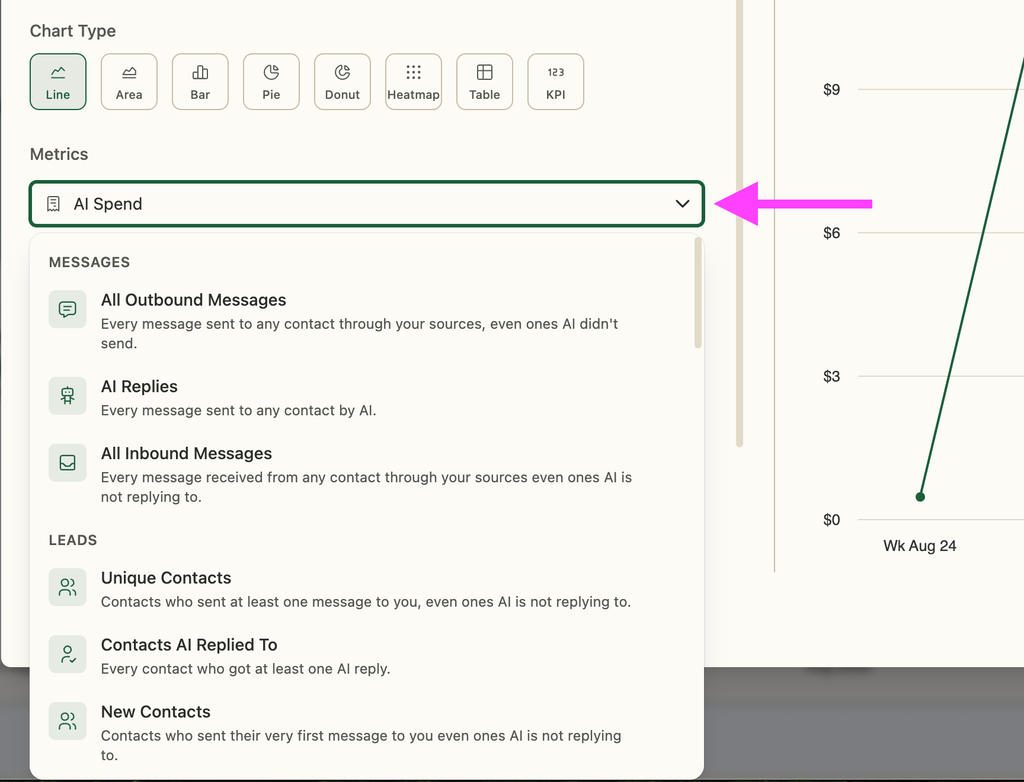
CloseBot Analytics tracks 27 metrics across six categories:
- Messaging: All Outbound Messages, AI Replies, All Inbound Messages, Followups AI Sent.
- Contacts: Unique Contacts, Contacts AI Replied To, New Contacts.
- Outcomes: Contacts Booked (each person counts once), Bookings (every booking counts), Lead Score Average, Lead Score Points, Conversation Sentiment.
- Cost: AI Spend, AI Spend Breakdown, AI Response Segments, AI Segment Breakdown, Rebilled Spend (agency only), Wallet Balance.
- Agent behavior and knowledge: Tool Uses, FAQs Added, Knowledge Section References, Uploads Referenced.
- Website and widget (from the Sales Intelligence Pixel): New Visitors, Sessions, Page Views, Widget Conversions.
Each metric has its own filters. Every one of them is explained in the Report Metrics help doc.
How does AI lead scoring work in CloseBot?
In CloseBot, lead scoring gives each contact points based on rules you set for each source. The score shows up on the contact card, along with an event history of every change. Rules can add or subtract points, so a score can go negative.
You set the rules under Sources > Analytics > Lead Score. CloseBot reads the job flow that the source is connected to, then offers scoring options based on the tools that flow actually uses. Here’s how I set up our own homepage source:
- A positive reply (sentiment above 60) adds 1 point.
- A negative reply (sentiment below 40) subtracts 1 point.
- Viewing a page on our site adds 1 point.
- Booking an appointment adds 5 points.
You could also take points away when someone cancels, or add points when a contact record is updated. Each rule can fire once, up to a maximum number of times, or without limit. Different businesses value leads differently, which is why every source gets its own rules.
How is conversation sentiment measured?
Every message gets a sentiment score from 0 (negative) to 100 (positive), with 50 as neutral. Those scores are averaged across the whole conversation. The contact card shows a sentiment line with the average next to it. Click any point on the line to jump straight to that message.
CloseBot’s sentiment scores are accurate for every language and even detect sarcasm
Sentiment really shines in dashboards. You can chart it over time, by channel, or by source. Maybe leads are happy talking to your AI over SMS but not over live chat. Or maybe sentiment slides downward over a few weeks. If that happens, drill into the sources where it’s dropping and read those conversations.
What is the Topics Explorer?
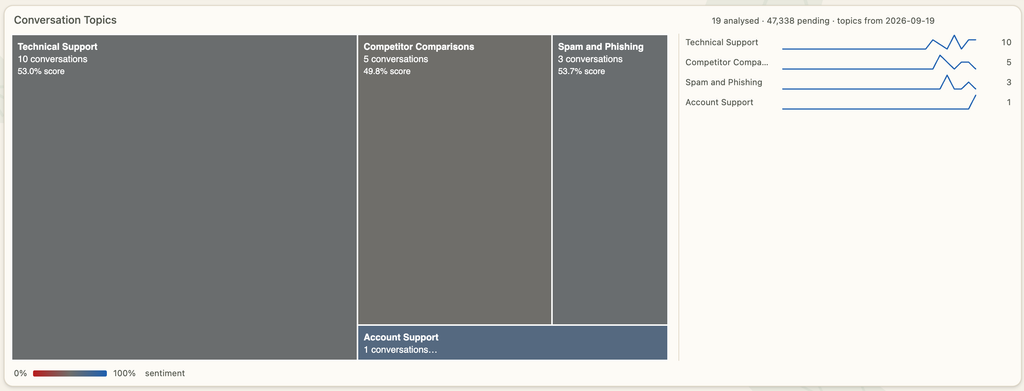
Every few hours, Topics reads through your conversations and labels what they’re about. The Topics Explorer chart then shows which topics come up, when they come up, and how happy leads are while discussing them.
Here’s the example I always use. Say that on weekends, “business hours” comes up a lot, and sentiment is low. You click in and realize your Google Business Profile says you’re open on weekends when you aren’t. That’s a problem no amount of prompt tweaking would ever reveal.
How do you A/B test AI sales agent personas?
In CloseBot, personas define how your agent talks. That includes its tone and its AI provider: Anthropic, OpenAI, Gemini, or Grok. We separated jobs (what needs doing) from personas (who does it) from day one, specifically so we could split test personas someday. That day is here.
To start a test:
- Open a job flow and click Personas in the sidebar.
- Hover over the “+” and choose A/B Test.
- Pick the persona to test against and set the traffic split, such as 50/50.
- Choose whether to optimize for lead score or sentiment.
- Pick a duration and click Start Split Test.
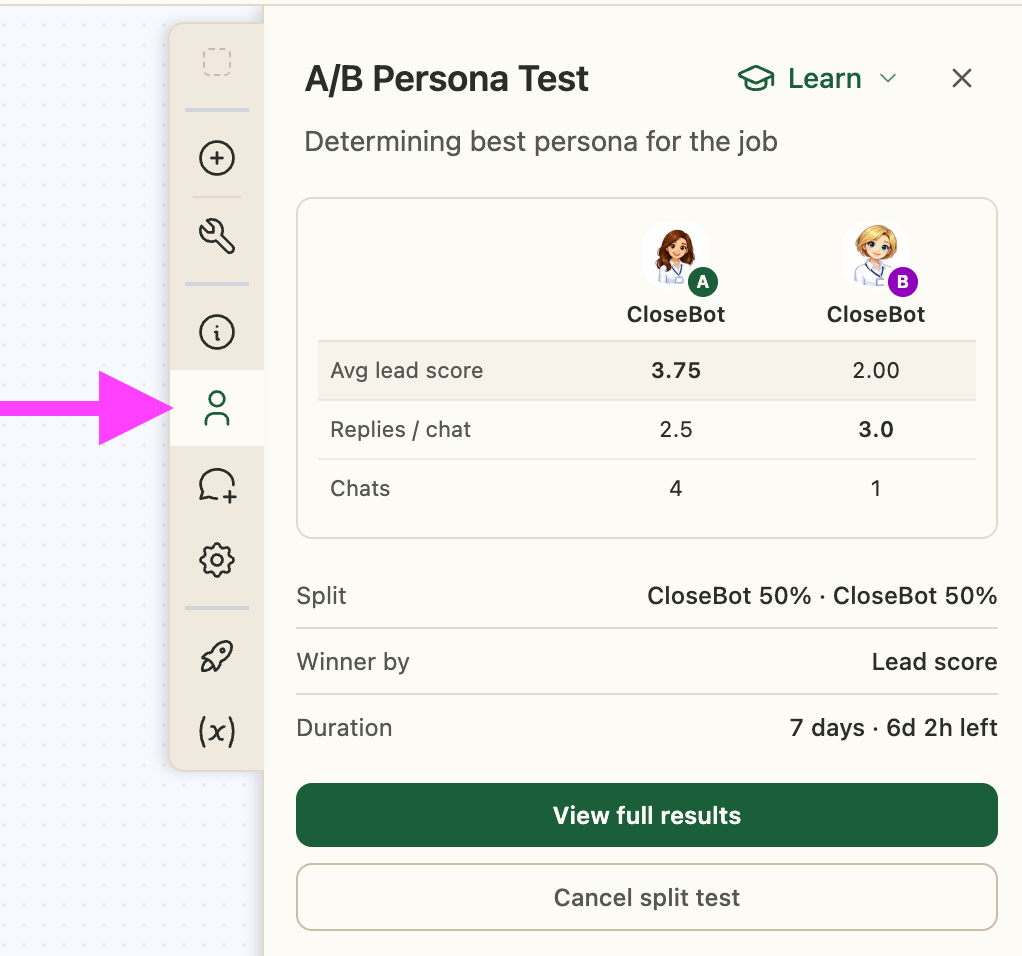
Each new lead gets assigned to one persona and stays with it for the whole conversation. When the test ends, CloseBot picks the winner and switches over automatically. You can check live results in the Personas tab, review past tests, or end a test early.
If you use a conversational AI product that cannot easily perform split testing, your lead funnel isn’t running as well as it could be.
How long should you run a test? Very high-volume accounts may get a meaningful result in one day. Lower-volume accounts may need up to 30 days.
For our homepage chat widget, I optimize for lead score. Our rules already reward positive replies and heavily reward bookings, so lead score covers both happiness and conversion. Optimizing for sentiment alone makes more sense for agents that mostly answer questions.
How can you see what your AI spend is going toward?
The AI Spend Breakdown metric splits your AI costs by what drove them: the global prompt, tool context, thinking, and more. As far as I know, no other AI sales platform shows this level of cost detail. All of the cost metrics are included on the free tier. We believe you should know exactly what you’re spending and why.
When I opened our own Cost Deep Dive dashboard, loading tools turned out to be a big chunk of our spend. Thinking, on the other hand, was a very small share. I’d expected the opposite. So if you’ve unlocked Agent Node and haven’t turned thinking on yet, you probably should.
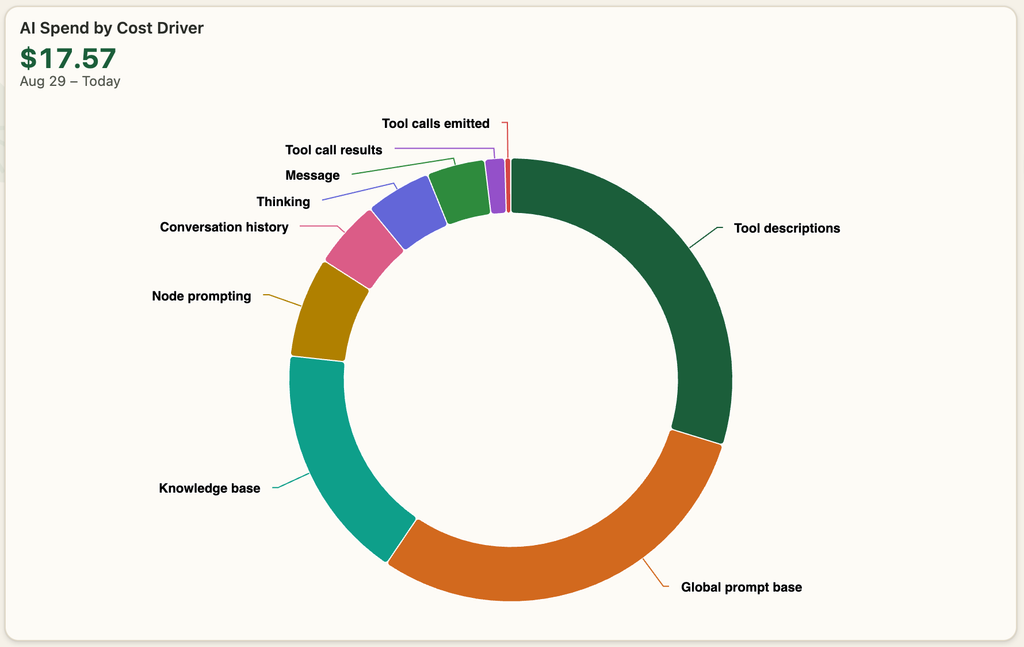
You might find that half your spend comes from an oversized global prompt. If so, moving that content into Uploads can cut costs, because the knowledge base is already optimized to pull in only what each reply needs. These small fixes add up fast at scale.
For reference, agency plans pay 1.2 cents per message on the base setup. With Agent Node unlocked, you pay token cost plus 20%. Because we keep prompt sizes lean, that’s often still cheaper than running the same conversation through another provider.
What’s on the Leaderboard?
The Leaderboard ranks accounts in five categories: bookings, booking rate, new contacts, AI replies, and sentiment. You need at least 25 contacts to appear. You can view rankings for your whole account or for a single sub-account.
To give you a sense of scale, here were the top accounts partway through September:
- One account had booked 8,700 appointments month to date.
- The top booking rate was 41.7% of all incoming contacts.
- One account had engaged 21,258 new contacts.
- Another had sent 357,000 AI replies.
Next, we’re labeling every source by industry. Soon you’ll be able to see how a home services sub-account ranks against other home services accounts.
Can agencies share dashboards with clients?
Yes. With the paid Analytics add-on, agencies can share any report with clients. Each client only sees data for the sources they’re assigned to, even if you built the report across all your sources.
Agencies can also switch lead scoring, sentiment, and topics on or off for each source. They’re on by default. This came straight from our beta users, who wanted the option to charge clients extra for advanced analytics. On business plans these features are always on, which keeps things simple.
Which dashboard templates come included?
Templates give you a head start, and you can edit any of them. They include:
- Starter: the familiar basics.
- Lead Flow: contacts engaged versus contacts the AI actually replied to.
- Cost Deep Dive: spend by cost driver and cost per message.
- Daily Pulse: KPI cards where you decide whether an increase counts as good or bad.
- Lead Happiness: the Topics Explorer.
- Sentiment by channel.
- Message overview.
- Lead Quality: average lead score week over week.
- Booking rate.
- Cost management: built entirely from free-tier features.
- Channel comparison.
- Website and widget traffic: pages, domains, and UTM source types.
- Message heatmaps: volume by hour and day.
- Tool usage.
- Knowledge base monitor: which uploads and document types your agent actually uses.
If you’d rather have an AI assistant build dashboards for you, the analytics API is open. Generate an API key in your account settings and point your assistant at our API docs.
What’s free and what’s paid?
| Feature | Free | Analytics add-on |
|---|---|---|
| Reports, dashboards, and core metrics | Yes | Yes |
| All cost metrics | Yes | Yes |
| Leaderboard | Yes | Yes |
| Segment By | No | Yes |
| Table and heatmap chart types | No | Yes |
| Lead scoring | No | Yes |
| Sentiment scores | No | Yes |
| Topics and Topics Explorer | No | Yes |
| Persona A/B testing | No | Yes |
| Sharing reports with clients (agencies) | No | Yes |
How much does CloseBot Analytics cost?
On business plans, the Analytics add-on starts at $27 per month at the 500-message tier and scales up to $397 per month at higher volume. On agency plans, it’s $397 per month.
Alongside the launch, we simplified our plans. The new Business plan is $97 per month and now includes unlimited job flows, unlimited uploads, and unlimited user seats. Those used to be paid extras with their own sliders. Some people who were paying more before will actually pay less. On agency plans, user seats now cost you nothing, and you can still rebill seats and uploads to your clients.
Business plan users need to switch to the new Business plan before adding Analytics. If you’re on an annual plan, the add-on has to be billed annually too. If your account shows a Founding Member or Early Adopter badge (you bought before 2025 and never canceled), contact Sales and Billing for special pricing.
To turn it on, go to Plans, click Edit Plan, enable Analytics under Add-ons, and continue to payment. New accounts get a 7-day free trial.
Frequently asked questions
AI sales analytics is the measurement of how AI sales agents perform on outcomes that matter to revenue. That includes appointments booked, booking rate, lead quality, conversation sentiment, and cost per message or per booked contact. CloseBot Analytics provides these metrics natively for AI agents running on GoHighLevel, HubSpot, and the CloseBot chat widget.
Measure an AI sales agent on bookings and booking rate, lead score, conversation sentiment, and cost per outcome. Response volume alone isn’t enough. CloseBot tracks 27 metrics, including Contacts Booked, Lead Score Average, Conversation Sentiment, and AI Spend Breakdown. Its Formula metric lets you build ratios like cost per booked contact.
Yes. CloseBot’s persona A/B testing splits incoming leads between two personas, which can differ by tone or AI provider (Anthropic, OpenAI, Gemini, or Grok). Each lead stays with one persona for the whole conversation. When the test ends, CloseBot picks the winner automatically based on lead score or sentiment. It’s included in the paid Analytics add-on.
CloseBot scores every lead message from 0 to 100. Zero is negative, 50 is neutral, and 100 is positive. The scores are averaged across the conversation. Sentiment appears on the contact card, can be charted in dashboards by channel, source, or time, and can be used as the target for persona A/B tests.
In CloseBot, each source gets its own point rules. Positive or negative replies, page views tracked by the Sales Intelligence Pixel, bookings, cancellations, and custom tool actions can all add or subtract points. The score and its full event history appear on the contact card.
Use CloseBot’s AI Spend Breakdown to see how much of your spend comes from the global prompt, tool context, and thinking. Common fixes include moving long prompt content into the knowledge base, removing tools the agent doesn’t need, and tracking follow-up volume, since aggressive follow-ups raise costs over time. All cost metrics are free.
Yes. CloseBot Analytics works with GoHighLevel, HubSpot, and the CloseBot chat widget. Booking metrics currently track bookings made through the native GoHighLevel and HubSpot calendar tools. Support for custom booking tools, such as ServiceTitan, Jobber, Calendly, and Cal.com, is coming. Other CRMs, including Close, can connect through CloseBot’s blank source and webhook channel.
Agencies on the Analytics add-on can share reports with clients, and each client sees only their own sources. Agencies can also turn lead scoring, sentiment, and topics on or off for each source, which makes it easy to resell advanced analytics as a premium tier.
The base reports, core metrics, all cost metrics, and the Leaderboard are free. Lead scoring, sentiment, topics, persona A/B testing, segmenting, table and heatmap charts, and client sharing require the Analytics add-on. The add-on starts at $27 per month on business plans, or $397 per month on agency plans.