


You can now run your entire CloseBot agency from the AI assistant you already have open all day. The CloseBot MCP connects Claude, ChatGPT, Codex and other MCP clients to your account through 127 tools (expanding). Ask a question in plain English and your assistant can pull booking data across every sub-account, read a job flow, compare personas, start a test session or draft a change to an agent.
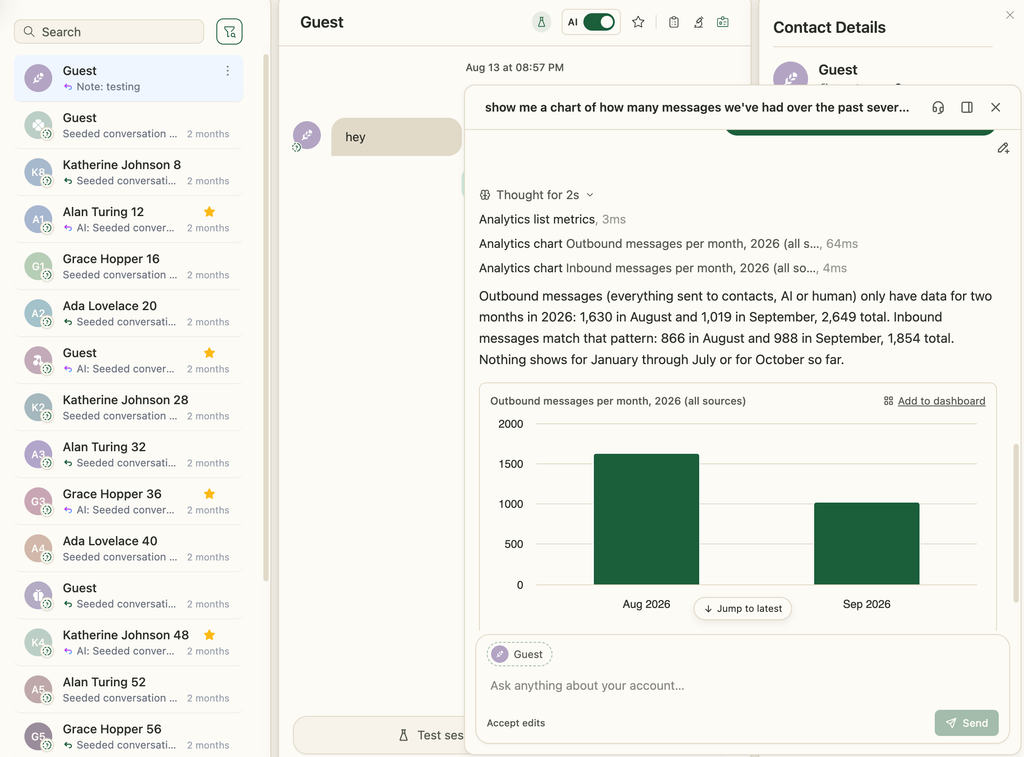
We also shipped Cosmo, a new AI helper inside CloseBot. It lives in the bottom right of the app, it’s trained on our latest help docs, and it can do everything the MCP can do, plus build charts for you and more right inside CloseBot.
If you manage AI sales agents for 10, 50 or 200 clients, this changes how you work. The questions that used to mean an hour of clicking through dashboards now take one prompt. If you’re managing just for yourself, this also drastically simplifies how you work with CloseBot.
What is the CloseBot MCP? An MCP for sales AI agents
The CloseBot MCP is a remote Model Context Protocol server at https://api.closebot.com/mcp. MCP is the open standard that lets AI assistants like Claude and ChatGPT call tools in other software. Once you connect CloseBot, your assistant can see and work with your bots, job flows, leads, sources, personas and analytics.
Most MCP servers built for sales stop at the CRM. They don’t go deep into what you need to have super powerful sales AI.
They let an AI look up a contact or move an opportunity. The CloseBot MCP covers the layer above that: the AI sales agents that actually talk to your leads, follow up and book the appointments.
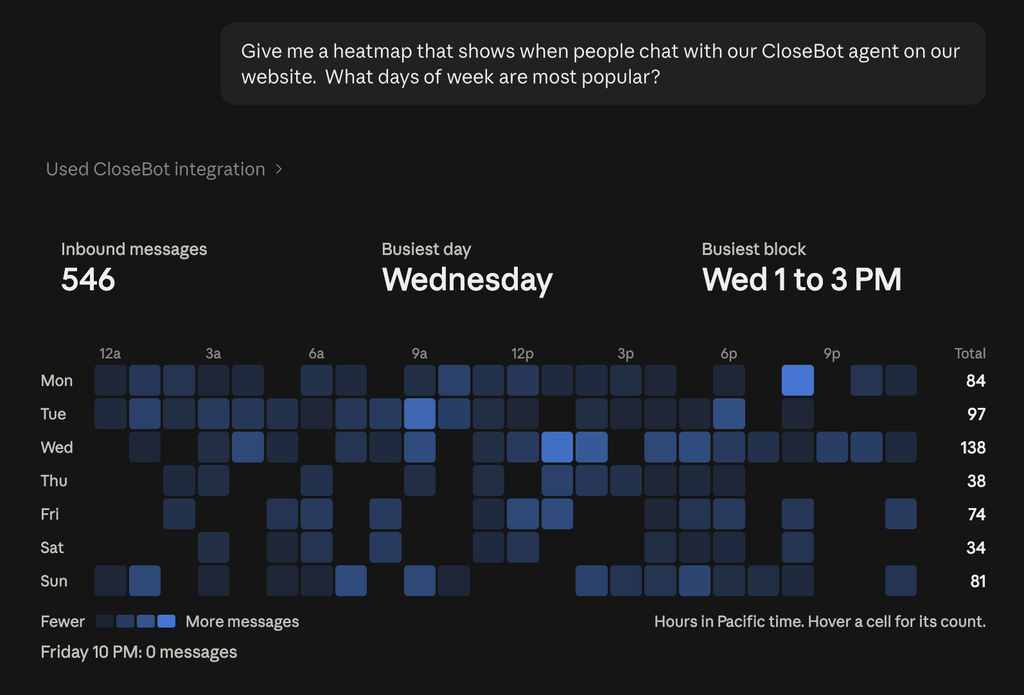
For agency operators, the big unlock is scale. One prompt can reach across every client account you manage, so you can compare performance, spot what’s working and roll it out without opening each sub-account one at a time.
What the 127 tools cover
The 127 tools map to literally everything you can do within the CloseBot app. Here’s how they break down.
| Area | What MCP or Cosmo can do |
|---|---|
| Bots and job flows | List, create, duplicate, export and publish bots; read a job flow; add or configure Agent nodes, branches, follow-up cadences and the global prompt; validate a flow; restore earlier versions |
| Testing | Start test sessions, send test messages as a contact, roll back, and create live demos to share with clients |
| Leads and conversations | Search leads, read full conversation history, update custom fields, and send messages (one lead or in bulk) |
| Analytics and metrics | Query bookings, transfers and message counts over any time range; pull execution logs; ask why a bot sent a specific message; see where you stand on the leaderboard |
| Personas and AI providers | Read and update personas, voice and response behavior, and manage AI provider connections |
| Sources | Manage sources, attach bots, and list calendars, channels, custom fields and tags |
| Knowledge and Smart FAQ | Attach knowledge base files to sources and answer open FAQ entries in bulk, create or update knowledge base items |
| Agency and billing | Check usage against plan limits, wallet balances, rebilling settings and source transactions; invite team members; review notifications |
Because every tool works across sub-accounts your login can see, a question like “which of my clients had the biggest drop in bookings this month?” becomes a single prompt.
Three prompts worth trying first
The best way to understand the CloseBot MCP is to watch it answer the questions agency owners ask every week. Here are three we use ourselves.
1. Copy what your best agent does into your worst one
“Look at my best converting Agent and see if there are any things in there driving that success that can be implemented in my worst performing Agent.”
Cosmo pulls booking counts per bot to find the top and bottom performers. Then it reads both job flows side by side: prompts, exits, tools, follow-up cadences and persona settings. You get a short list of differences that likely explain the gap, plus suggested edits for the weaker agent.
Tell it to go ahead and it can make those edits as a new draft. Ask it to start a test session before you publish, and you can check the changes with a few sample messages first.
2. Chart your top accounts and test their personas everywhere else
“Show me a chart of all bookings for my top 3 accounts and if they are using different personas start an A/B test between those personas on the rest of the accounts to see which converts more bookings.”
This one chains several steps that used to take an afternoon. Cosmo ranks accounts by bookings, charts the top three, checks which persona each one uses, and if they differ, sets up a persona A/B test across your remaining accounts. CloseBot then tracks which persona books more and can pick the winner automatically.
3. Find your best day for booked appointments
“Over the past 6 months what’s my most popular day for leads booking appointments?”
Cosmo queries six months of booking actions and groups them by day of the week. You get the answer in one line, plus the breakdown if you want it. Agencies use this to time follow-up cadences, staff calendars and schedule campaigns for the days leads are most ready to book.
Advanced analytics, one prompt away
If you’re on the Analytics add-on, the MCP opens up CloseBot’s advanced analytics to your AI assistant too:
- Persona A/B testing: start tests, check results and see which persona is winning on bookings.
- Heatmap charts: see when leads respond and book, by day and hour.
- Lead scoring: pull scores set by your source-level scoring rules and find your hottest leads.
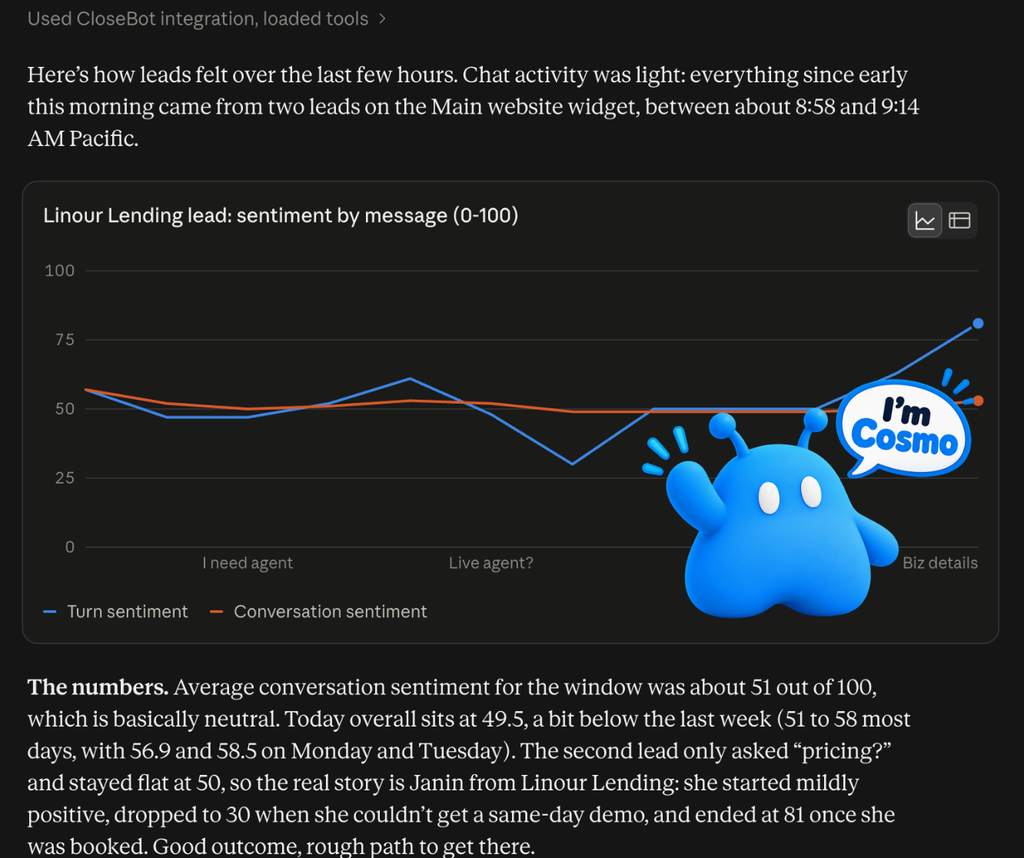
- Sentiment tracking: follow how a conversation’s sentiment moves from first message to booking (or drop-off).
- Topics analysis: find what leads ask about most, across one client or all of them.
That means you can ask “Which topics come up most in conversations that don’t book?” and get a real answer drawn from your own data. See the full feature set on our sales agent analytics page.
Meet Cosmo, CloseBot’s in-app AI
Not everyone on your team lives in Claude or Codex. That’s why we built Cosmo right into CloseBot.
Cosmo sits in the bottom right corner of the app and replaces our old AI support chat. It’s trained on our most up-to-date help docs, so when you ask how to set up a follow-up cadence or why a calendar isn’t syncing, you get answers that match the product as it works today.
It also works with your data. Ask Cosmo for a chart and it builds one right inside CloseBot, so you can check performance without leaving the screen you’re on. Cosmo shows you suggestions of things you can ask depending on the page you’re on 🙂
If you’re on a paid plan and need a person, you can still reach our human support team from Cosmo.
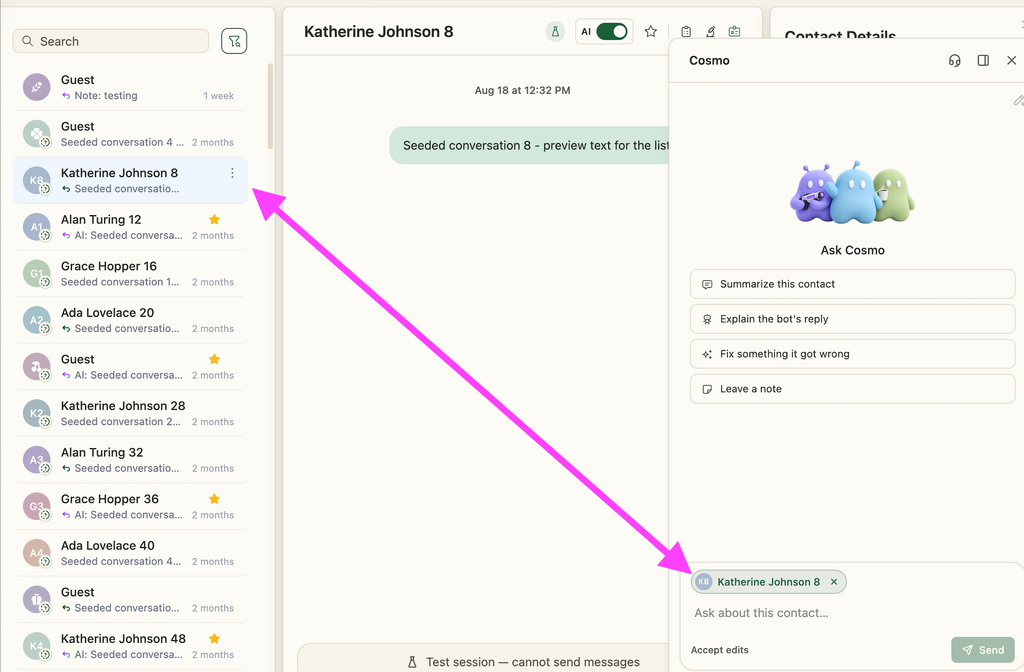
Cosmo Controls Context
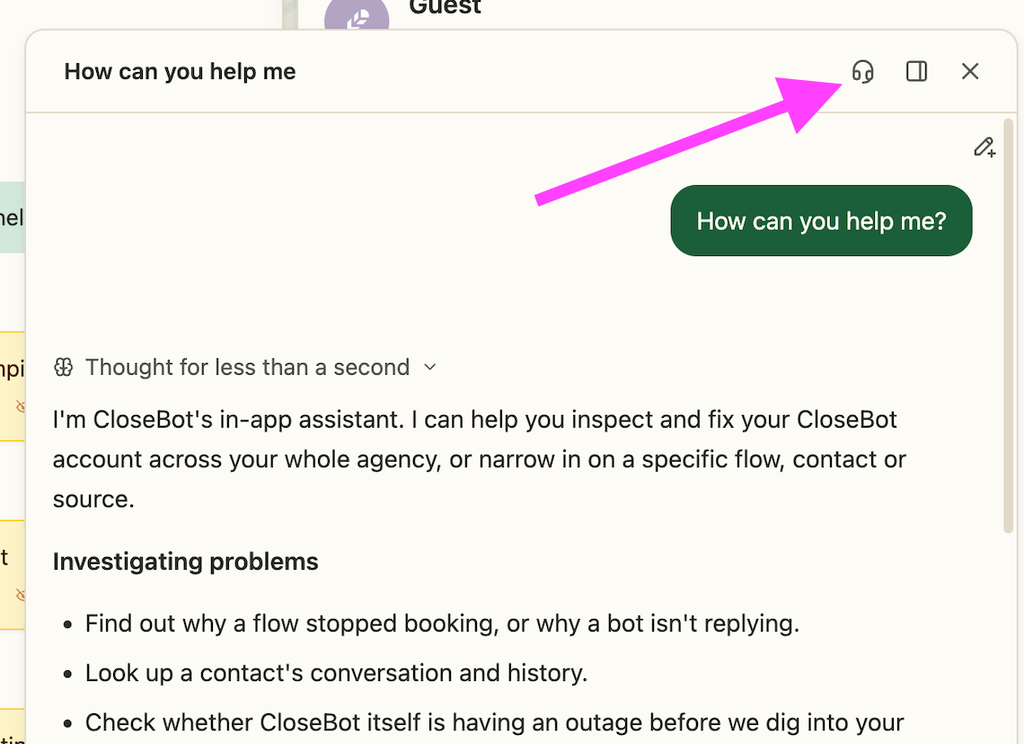
When you’re chatting with Cosmo, it will suggest items that you can add to the context. When you choose to do this, it will keep all actions it takes locked down to this item.
For example, if you want to make sure it stays focused on your current contact you’re viewing, click the contact pill and Cosmo will know to hyper focus on that contact you’re viewing!
How to connect the CloseBot MCP
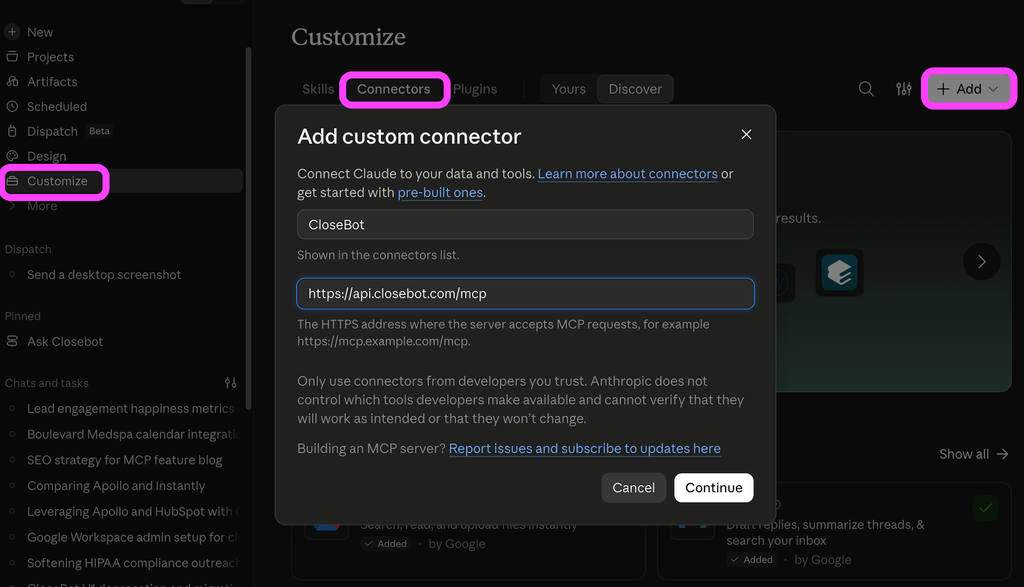
Setup takes about two minutes. CloseBot supports Dynamic Client Registration, so there’s no API key to copy. You sign in with your CloseBot login and you’re connected.
In Claude
- Open Customize, then Connectors.
- Click Add custom connector.
- Paste
https://api.closebot.com/mcpas the URL. - Click connect and sign in to CloseBot when prompted.
- Start a new chat and ask something like “Which of my bots booked the most appointments last month?”
In Codex, ChatGPT and other MCP clients
Add https://api.closebot.com/mcp as a remote MCP server in your client’s settings, then sign in to CloseBot when it asks. Any client that supports remote MCP servers with sign-in can connect the same way.
Permissions, safety and billing
What it can access. The MCP can do anything your CloseBot account permissions allow, and nothing more. If a team member’s login can’t change dangerous settings in the app, their AI assistant can’t either.
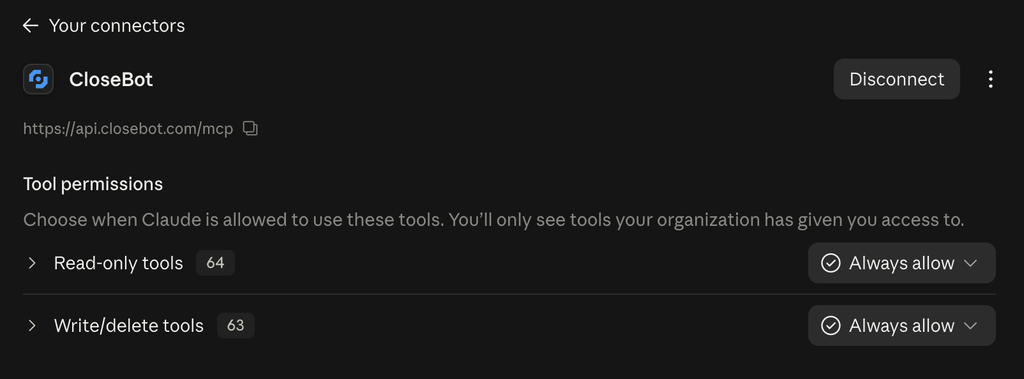
You control the tools. Every tool is labeled read, write or delete, so your AI knows how serious an action is before it takes it. In Claude, Codex and most other clients, you can switch individual tools on or off in the connector settings. Want an analyst who can only look? Turn on the read tools and leave the rest off.
How it’s billed. MCP usage within third party platforms like Anthropic and Codex is absolutely free. Using Cosmo draws from your existing message segment count at your plan’s rate. There’s no separate MCP subscription. See plans for segment pricing.
A good habit while you get comfortable: ask your assistant to show you the changes it plans to make, and to run a test session before it publishes anything to a live bot.
CloseBot MCP vs. the HighLevel MCP: use both
If you run your agency on GoHighLevel, you may have seen that HighLevel offers its own MCP server. The two work well side by side because they cover different layers.
| HighLevel MCP | CloseBot MCP | |
|---|---|---|
| Focus | Your CRM records | Your AI sales agents |
| Typical data | Contacts, opportunities, appointments | Bots, personas, conversation-focused analytics |
| Best for | Looking up and updating CRM data and automations | Building, testing, comparing and improving the agents that book appointments |
Connect both and your assistant can answer questions that span them, like checking a contact’s pipeline stage in HighLevel and then reading the CloseBot conversation that got them there.
Read here to learn more about CloseBot vs. HighLevel Conversational AI and how CloseBot is built to work together with HighLevel and HubSpot.
Frequently asked questions
The CloseBot MCP is a remote MCP server that gives AI assistants like Claude, ChatGPT and Codex 127 tools to manage CloseBot. It lets you build, test and analyze AI sales agents across every account you manage using plain-English prompts.
MCP (Model Context Protocol) gives an AI assistant a list of tools it can call in another app. When you ask a question, the assistant picks the right CloseBot tools, such as booking metrics or conversation history, calls them with your permissions, and answers using the data that comes back.
Any MCP client that supports remote servers with sign-in, including Claude, ChatGPT and Codex. In Claude, go to Customize, then Connectors, then Add custom connector, and enter https://api.closebot.com/mcp.
No separate subscription. MCP usage with external apps is free on all plans. The in-app assistant does cost at the standard message segment rates.
Only if your account permissions allow it and the tool is turned on. Every tool is labeled read, write or delete, and you can disable any of them in your AI client’s connector settings.
Yes. With the CloseBot MCP connected, Claude can analyze booking performance, compare agents and personas, review conversations and make changes to your AI sales agents.
The MCP brings CloseBot into outside AI tools like Claude and Codex. Cosmo lives inside the CloseBot app, answers questions from our latest help docs and builds charts in-app.
Yes. Paid users can reach human support directly from Cosmo.
Yes, with the Analytics add-on. Learn more on the sales agent analytics page.
See it live
We’re walking through the CloseBot MCP and Cosmo at our live launch event. We’ll connect Claude on screen, run the prompts from this post against real agency data, and answer your questions as we go.